URGENT!! omg pls help me
-
my project deadline coming soon and my portable HDD tio virus from a printing shop!!!! Now i cnanot open my hdd at all pls advise wad to do? My antivirus says a RavMonE.exe virus was found, now i cant open my hdd fukk!
-
the website trustable or not, coz i search for it and found the same website oso, den i found it quite suspicious
-
Originally posted by Kawazoe:
how u noe?
my project deadline coming soon and my portable HDD tio virus from a printing shop!!!! Now i cnanot open my hdd at all pls advise wad to do? My antivirus says a RavMonE.exe virus was found, now i cant open my hdd fukk! -
erm coz i can use b4 that, den after come back from printing shop my hdd plug in liao detected virus.
i virus scanned and moved the virus to vault (using AVG btw), but i still cant open the hdd, windows gimme message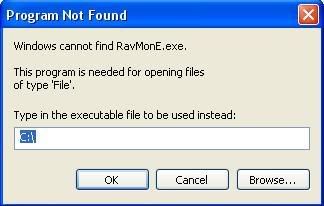
how to overcome this? u mean i shldnt have removed the virus? -
i tried the free ravmon removal tool from stinger mcafee, everytime when its nearing the end of its scan, my AVG will pop up to as me heal the ravmon virus, and some system restore virus thing on my hdd.
I suspect the ravmon virus delete liao will auto restore itself
xiaomayi where are u my presentation in 2 days canot access file -
Yeah... it does RESTORE itself.Originally posted by Kawazoe:i tried the free ravmon removal tool from stinger mcafee, everytime when its nearing the end of its scan, my AVG will pop up to as me heal the ravmon virus, and some system restore virus thing on my hdd.
I suspect the ravmon virus delete liao will auto restore itself
xiaomayi where are u my presentation in 2 days canot access file
So far, Stinger worked quite well, except that it may crash.
http://tinybox.bravehost.com/OffAutoplay.html
Turn off auto play in Windows first.
Then run a scan with Trend Micro to remove any viruses found.- [*]Please download Sysclean Package by Trend Micro and save it to your desktop.
[*]Download Virus Pattern Files by Trend Micro and save it to your destkop.
[*]Create a new folder on your desktop.
[*]Right click on your desktop.
[*]Click on New > Folder.
[*]Type in Trend Micro as the name of the folder.
[*]Select sysclean.com by clicking once. Press Ctrl + X simultaneously.
[*]Open the Trend Micro folder you created earlier. Press Ctrl + V to paste sysclean.com into the folder.
[*]Right click and select Extract All.
[*]Click on Browse. Navigate to the Trend Micro folder and click OK.
[*]Click Next, then Finish.
[*]Disconnect from the Internet and disable your antivirus temporary by right clicking on your antivirus and selecting Quit AVG Control Center.
[*]Close all opened windows except the Trend Micro folder.
[*]Double click on sysclean.com to run it.
[*]Check (tick) Automatically Clean Infected Files box.
[*]Once the scanning is done, click Exit.
[*]A sysclean.log is created in the Trend Micro folder.
[*]Copy and paste that log in your next reply.
[*]Re-enable your antivirus by going to Start > All Programs and open the antivirus again and connect back to the Internet.
Open Registry Editor (Start > Run, regedit)
Navigate to this key: HKEY_LOCAL_MACHINE\Software\Microsoft\Windows\CurrentVersion\Run
You should see "RavAV" = "%Windir%\RAVMON.EXE"
Delete this "RavAV" = "%Windir%\RAVMON.EXE". -
After scanning both the portable HDD and your hard disk, reformat the portable HDD. Back up the files in your HDD first.
-
as usual, our heroine, xiaomayi saves the day.


-
Can work then say...
This one is very stubborn once it infects... -
2006-11-06, 01:31:00, Auto-clean mode specified.
2006-11-06, 01:31:00, Running scanner "C:\Documents and Settings\kelvin\Desktop\Trend Micro\TSC.BIN"...
2006-11-06, 01:31:22, Scanner "C:\Documents and Settings\kelvin\Desktop\Trend Micro\TSC.BIN" has finished running.
2006-11-06, 01:31:22, TSC Log:
2006-11-06, 01:31:36, An error was detected on "C:\Documents and Settings\kelvin\Desktop\stuff\????\*.*": The filename, directory name, or volume label syntax is incorrect.
2006-11-06, 01:32:27, An error was detected on "C:\Documents and Settings\Owner\Local Settings\Temporary Internet Files\Content.IE5\85MFGPEV\*.*": The file or directory is corrupted and unreadable.
2006-11-06, 01:34:24, An error was detected on "C:\System Volume Information\*.*": Access is denied.
2006-11-06, 02:35:04, Files Detected:
Copyright (c) 1990 - 2004 Trend Micro Inc.
Report Date : 11/6/2006 01:34:54
VSAPI Engine Version : 8.000-1001
VSCANTM Version : 1.1-1001
Virus Pattern Version : 901 (140264 Patterns) (2006/11/03) (390100)
Command Line: C:\Documents and Settings\kelvin\Desktop\Trend Micro\VSCANTM.BIN /NBPM /S /CLEANALL /DCEGENCLEAN /LAPPEND /LD /LC /LCF /NM /NB /C /ACTIVEACTION=5 C:\*.* /P=C:\Documents and Settings\kelvin\Desktop\Trend Micro
148832 files have been read.
148832 files have been checked.
134001 files have been scanned.
271968 files have been scanned. (including files in archived)
0 files containing viruses.
Found 0 viruses totally.
Maybe 0 viruses totally.
Stop At : 11/6/2006 02:35:00
---------*---------*---------*---------*---------*---------*---------*---------*
2006-11-06, 02:35:04, Files Clean:
Copyright (c) 1990 - 2004 Trend Micro Inc.
Report Date : 11/6/2006 01:34:54
VSAPI Engine Version : 8.000-1001
VSCANTM Version : 1.1-1001
Virus Pattern Version : 901 (140264 Patterns) (2006/11/03) (390100)
Command Line: C:\Documents and Settings\kelvin\Desktop\Trend Micro\VSCANTM.BIN /NBPM /S /CLEANALL /DCEGENCLEAN /LAPPEND /LD /LC /LCF /NM /NB /C /ACTIVEACTION=5 C:\*.* /P=C:\Documents and Settings\kelvin\Desktop\Trend Micro
148832 files have been read.
148832 files have been checked.
134001 files have been scanned.
271968 files have been scanned. (including files in archived)
0 files containing viruses.
Found 0 viruses totally.
Maybe 0 viruses totally.
Stop At : 11/6/2006 02:35:00 59 minutes 56 seconds (3595.41 seconds) has elapsed.
---------*---------*---------*---------*---------*---------*---------*---------*
2006-11-06, 02:35:04, Clean Fail:
Copyright (c) 1990 - 2004 Trend Micro Inc.
Report Date : 11/6/2006 01:34:54
VSAPI Engine Version : 8.000-1001
VSCANTM Version : 1.1-1001
Virus Pattern Version : 901 (140264 Patterns) (2006/11/03) (390100)
Command Line: C:\Documents and Settings\kelvin\Desktop\Trend Micro\VSCANTM.BIN /NBPM /S /CLEANALL /DCEGENCLEAN /LAPPEND /LD /LC /LCF /NM /NB /C /ACTIVEACTION=5 C:\*.* /P=C:\Documents and Settings\kelvin\Desktop\Trend Micro
148832 files have been read.
148832 files have been checked.
134001 files have been scanned.
271968 files have been scanned. (including files in archived)
0 files containing viruses.
Found 0 viruses totally.
Maybe 0 viruses totally.
Stop At : 11/6/2006 02:35:00 59 minutes 56 seconds (3595.41 seconds) has elapsed.
---------*---------*---------*---------*---------*---------*---------*---------*
2006-11-06, 02:35:04, Scanner "C:\Documents and Settings\kelvin\Desktop\Trend Micro\VSCANTM.BIN" has finished running.
2006-11-06, 02:39:16, Files Detected:
Copyright (c) 1990 - 2004 Trend Micro Inc.
Report Date : 11/6/2006 02:35:14
VSAPI Engine Version : 8.000-1001
VSCANTM Version : 1.1-1001
Virus Pattern Version : 901 (140264 Patterns) (2006/11/03) (390100)
Command Line: C:\Documents and Settings\kelvin\Desktop\Trend Micro\VSCANTM.BIN /NBPM /S /CLEANALL /DCEGENCLEAN /LAPPEND /LD /LC /LCF /NM /NB /C /ACTIVEACTION=5 D:\*.* /P=C:\Documents and Settings\kelvin\Desktop\Trend Micro
9506 files have been read.
9506 files have been checked.
8830 files have been scanned.
19599 files have been scanned. (including files in archived)
0 files containing viruses.
Found 0 viruses totally.
Maybe 0 viruses totally.
Stop At : 11/6/2006 02:39:14
---------*---------*---------*---------*---------*---------*---------*---------*
2006-11-06, 02:39:16, Files Clean:
Copyright (c) 1990 - 2004 Trend Micro Inc.
Report Date : 11/6/2006 02:35:14
VSAPI Engine Version : 8.000-1001
VSCANTM Version : 1.1-1001
Virus Pattern Version : 901 (140264 Patterns) (2006/11/03) (390100)
Command Line: C:\Documents and Settings\kelvin\Desktop\Trend Micro\VSCANTM.BIN /NBPM /S /CLEANALL /DCEGENCLEAN /LAPPEND /LD /LC /LCF /NM /NB /C /ACTIVEACTION=5 D:\*.* /P=C:\Documents and Settings\kelvin\Desktop\Trend Micro
9506 files have been read.
9506 files have been checked.
8830 files have been scanned.
19599 files have been scanned. (including files in archived)
0 files containing viruses.
Found 0 viruses totally.
Maybe 0 viruses totally.
Stop At : 11/6/2006 02:39:14 3 minutes 52 seconds (232.83 seconds) has elapsed.
---------*---------*---------*---------*---------*---------*---------*---------*
2006-11-06, 02:39:16, Clean Fail:
Copyright (c) 1990 - 2004 Trend Micro Inc.
Report Date : 11/6/2006 02:35:14
VSAPI Engine Version : 8.000-1001
VSCANTM Version : 1.1-1001
Virus Pattern Version : 901 (140264 Patterns) (2006/11/03) (390100)
Command Line: C:\Documents and Settings\kelvin\Desktop\Trend Micro\VSCANTM.BIN /NBPM /S /CLEANALL /DCEGENCLEAN /LAPPEND /LD /LC /LCF /NM /NB /C /ACTIVEACTION=5 D:\*.* /P=C:\Documents and Settings\kelvin\Desktop\Trend Micro
9506 files have been read.
9506 files have been checked.
8830 files have been scanned.
19599 files have been scanned. (including files in archived)
0 files containing viruses.
Found 0 viruses totally.
Maybe 0 viruses totally.
Stop At : 11/6/2006 02:39:14 3 minutes 52 seconds (232.83 seconds) has elapsed.
---------*---------*---------*---------*---------*---------*---------*---------*
2006-11-06, 02:39:16, Scanner "C:\Documents and Settings\kelvin\Desktop\Trend Micro\VSCANTM.BIN" has finished running.
I didnt scan my HDD leh, should i scan it too? -
Yup, you should scan your HDD.
It looks like your home PC hard disk is not affected.
If the Stinger tool works... Trend Micro wouldn't show any infected files again. Then reformat the external HDD. -
my registry dun have the Rav thing, means my com nt infected oni my portable hdd?
coz my avg auto stop the autoplay of the hdd, i dont think the virus entered my com -
Most likely.
Just scan the external hard disk and remove it if found. It is quite stubborn and uses some Windows files to run. Also stop auto play in USB drives. Link has been given. -
xiaomayi ill be back late at night, so for now thanks so much for helping me!!! i scan my hdd later tonite

-
Okie.
-
i backed up my data today, and reformated my hdd, everything is finally fine and ready for presentation tomoro

once again MUCH THANKS TO XIAOMAYI!!!!!!!!!!!!!!!!!!!!!
-
Woots!!!