Basic Firefox and Tips
-
As requested.
First, will be the basics.
There's a lot... more than tips...
Basic Firefox Guide
Basic Firefox Configurations
Go to Tools > Options.
Click on Main.
Startup
Startup section lets you configure your home page.
If you select Show my home page from the drop-down list for When Firefox starts, Firefox will load whatever home page you've set it to. In my example, it will load a blank page.
If you select Show a blank page from the drop-down list for When Firefox starts, Firefox will show you a blank page. It's very much like setting about:blank as your home page.
Selecting Show my windows and tabs from last time for When Firefox starts will load all the websites that you've opened in your last session. It's very useful if you have done your research half way and don't want to search around again. This option eats up the most resources as well, so use it only when needed.
As for the Home Page field, it's self-explanatory. It will set your homepage. I prefer it to be blank. You can set anything you want.
If you decide to set one of your bookmarks as homepage, select the Use Bookmark button. Bookmarks Manager will open. Choose your favourite bookmark and click OK.
Clicking on the Restore to Default button will restore Firefox's homepage to its default page, which is a Google search page, modified to suit Firefox. -
Downloads
Show the Downloads window when downloading a file - it will show a window. If you uncheck (untick) this box, no window will be shown. The manual way would be to go Tools > Downloads or press Ctrl + J to show the download window.
Close it when all downloads are finished - the download window will close and notify you that all downloads have finished, at the bottom right hand corner, near the clock. If you uncheck (untick) this box, the download window will not close. Firefox will still notify that downloads have finished.
Save files to ___________ - Firefox will always save the files to this location, in this example, desktop. If you use this option, Firefox will not prompt you where to save, but will automatically save it.
Also, Firefox will not prompt you when you save double copies of the same file; it will automatically be renamed, for example file.exe, file(2).exe.
Always ask me where to save files - Whenever you download a file, Firefox will open another window. This allows you to choose a location where you want to save the file.
-
System Defaults

Checking (ticking) Always check if Firefox is the default browser on startup will make Firefox prompts you. It will ask if you want to make Firefox the default browser whenever you open it. Uncheck (untick) it to prevent it from prompting you each time you open it. -
Now on to the next tab - Tabs
Under New pages should be opened in:- [*]A new window - Whenever you click on a link that will open a new window, Firefox will open a new window, very much like Internet Explorer.
[*]A new tab - Whenever you click on a link that will open a new window, Firefox will force it to open as a tab, rather than a window.
Warn me when closing multiple tabs - Firefox will warn you when you close Firefox that has more than one tab open.
Warn me when opening multiple tabs might slow down Firefox - pretty much redundant, never had it warned me before, when I opened 40 tabs at one go.
Always show the tab bar - very obvious. Uncheck (untick) this box, your tabbing bar will be gone when only one tab is opened. When more than one tabs are being opened, the tab bar will be shown. It's a matter of personal preference here.
When I open a link in a new tab, switch to it immediately - again, very obvious. Rather than stay in the same page after opening a new tab, Firefox will switch to the new tab immediately. Unchecking (unticking) this box will tell Firefox not to. -
configuration about the same as IE 7?
-
The third tab - Content
Block pop-up windows - self-explanatory. Clicking on the Exceptions... button next to this option will add a whitelist. This will tell Firefox not to block this particular website's pop-ups.
Click on the Close button after you have finished editing the whitelist.
Load images automatically - all images will be loaded. Unchecking (unticking) this box will not load the images. This is very useful if you are on dial-up, and that website is very graphics intensive. Also, when you set images not to load automatically, the image will be replaced with text, if the person writing the HTML codes has written an alt text for it.
This is what happens when images are not loaded automatically and text replaces it:
The Exceptions button next to it does the same thing as blocking pop-ups, except that it adds either a blacklist or whitelist. If you allow images to load automatically, the exceptions list will be a blacklist. If you don't allow images to load automatically, it will be a whitelist.
Enable JavaScript - self-explantory. If for some reason a page doesn't work correctly, or if the page prompts that you don't have JavaScript enabled, you know you have disabled JavaScript.
To better manage JavaScripts on web pages, you can install this extension called NoScript. NoScript by default will block all scripts from running, but you can allow certain sites JavaScripts to work, rather than block it globally (which is unticking Enable JavaScript box).
To allow scripts of a particular website to run, just click on the S icon and select the site to allow. In this case, it's sgForums. Once it's allowed, the status will change to Forbid website.com.
Enable Java - This will allow Java applets to run. Most of the time it is not needed, unless you are some programmer looking for Java codes or the website uses Java applets (particularly Singapore Government websites). -
I doubt so. I had a play with IE7, the configurations are different.Originally posted by lifeisgood9989:configuration about the same as IE 7? -
Fonts and colours
Self-explantory, just go and play with the options available.
File Types
Whenever you click on a download, Firefox will prompt you to either open or save it. If you don't want Firefox to prompt you, this is where you manage it.
Click on the Manage... button.
A new window will open. In this window, you will see a list of common extensions and what Firefox will do with it.
For example, a file ending with .swf (it's called extension, but for the non-techie here, I will just write it as a file ending with .xxx)
Look under Action and you will see that Firefox will open it.
Click on Change Action... at the bottom left hand corner.
From here, you can change how Firefox handles them.
Open them with the default application - this will open the file using the default application set.
Open them with this application - you get to choose a program to open this particular type of file.
Save them on my computer - Firefox will not prompt you to either open or save, but save it directly. If you have set Firefox to prompt you where to save (see first post), you will get another dialouge. Otherwise, it will always save to your preferred location.
Use this Plugin - this is the recommended action, since most of us aren't programmers and probably won't bother to get a Flash player. A plugin would work nicely in this case.
It's the same for the rest of the extensions.
For extensions which are not listed, Firefox will automatically save them. (See the first post) -
Privacy tab
History
Remember visted pages for the last X days - tell Firefox to remember all the websites that you have visited for a number of days. This is useful if you don't surf the internet regularly.
Remember what I enter in forms and the search bar - something like IE. Firefox will show whatever you have entered for forms and the search bar, so you don't have to type it out again.
Remember what I've downloaded - very obvious. The download manager will store whatever you've downloaded, unless you clear the cache.
Cookies
Accept cookies from sites - you have to check (tick) this box, otherwise you will have problems logging in. This is because cookies are small pieces of information about you. If you are just a casual surfer, this box can be ignored. Clicking on the Exceptions... button allows you to blacklist or whitelist websites.
From Firefox 2.0 onwards, Firefox handles third-party cookies differently. All third-party cookies by default are allowed, unlike the previous versions of Firefox where they are being blocked. Third-party cookies are those cookies that don't originate from the original website. For example, you visit sgforums.com. You log in to sgF, and a cookie from sgF is saved.
However, there are also advertisements on sgF. Google advertisements, Big Church advertisements, etc. All these advertisements use cookies to collect data about you. For those who are concerned about privacy, this is definitely not good news to hear and read about.
To solve this problem, type in about:config in the address bar.
Scroll down to network.cookie.cookieBehavior. Right click and select Modify.
In the text box that pops up, changet eh number from 0 to 1.
You can also use an addon called CookieSafe to manage your cookies.
If you decide to use the CookieSafe addon, here's how you manage your cookies.
Click on the icon as shown below.
Allow sgforums.com - this allows all cookies for sgforums.
Allow sgforums.com for session - this allows all sgforums.com cookies while you are logged in to sgF.
Temporary allow sgforums.com - cookies are allowed temporarily, just only for sgF.
3rd-party aol.com - tells you that there are 3rd-party cookies and that it is reporting back to AOL.
You can also tell Firefox to handle cookies via the P3P way.
P3P is the Platform for Privacy. It enables websites to express their privacy practices in a standard format that can be automatically retrieved and interpreted by browsers.
P3P-compatible browsers will inform you of the site practices (both readable by machine and humans) and automatically make decisions when appropriate.
Here's how you configure it in Firefox
Type in about:config in the address bar.
Scroll down to network.cookie.p3plevel
Right click, select Modify, change it to frfrarar.
For more information, you can check out the Unofficial Cookies FAQ.
More information about P3P can be found at World Wide Web Consortium (W3C).
Private Data
Private Data is your cache, password informations, cookies, temporary files, browsing history and download history.
Checking (ticking) Always clear my private data when I close Firefox box will clear all these. Click on the Settings... button to select what to clear.
Checking (ticking) Ask me before clearing private data box will make Firefox prompts you every time you close Firefox. This is useful if you don't want to lose all your research or whatever you are surfing the previous days. You can also change the settings under History. It's up to you.
Please note that the Always clear my private data option will always take precedence over History. This means that if you choose this option, whatever options you set for History is of no use. -
stick it up.. For others to view it..
-
Security tab
Warn me when sites try to install add-ons - pretty obvious, when they try to install something new like a toolbar.
The exceptions button will bring you to build a whitelist of sites which can install add-ons for your Firefox.
Tell me if the site I'm visiting is a suspected forgery - warns you about phishing sites.
You can select either Firefox's database of phished websites or asking Google for a list.
There are also add-ons for it.
One of them is FirePhish. It is an anti-phish toolbar that is being updated regularly.
More toolbars are available here. They have been tried and tested by security experts and certified safe to use. Try not to use more than one anti-phishing toolbar, as it may conflict.
You can check also check out these two websites for phishing reports. They are being updated almost everyday.
Phishing, Fruad and Dastardly Deeds
PIRT Fried Phish Reports
Passwords
Remember passwords for sites - simply, it remembers passwords for sites that requires you to log in. The exceptions button will put a list of websites that tells Firefox not to remember any passwords.
Use a master password - a master password will be used to protect saved passwords on your PC. This prevents anybody from viewing the saved passwords feature in Firefox.
Warning Messages
Choose which warning messages you want to see while browsing the web - Firefox will warn you whenever you visit a page that might compromise your PC's security. Click on the Settings button to change how Firefox warns you. -
Advanced section - General tab
Accessibility
Always use the cursor keys to navigate within pages - the webpage will scroll down line by line, instead of page by page. You will also see a cursor key if you enable this option.
Search for text when I start typing - Firefox will start searching once you type.
Browsing
Use autoscrolling - for those who are using a mouse with a scroll wheel, and you don't fancy scrolling all the time, check (tick) this box. This allows you to click on the scroll wheel, and scroll down the pages as fast or as slow as you want.
There will be people who don't like this feature, especially if you misclick a lot of times.
Use smooth scrolling - smooth scrolling allows the smmoth moving of pages when you scroll down a page, especially when you use the Page Up or Page Down button. The page doesn't suddenly jump from one page to another.
Check my spelling as I type - checks your spelling and underlines it in red when your spelling is wrong. The dictionary used is an American dictionary, so you will get warnings about your spelling errors when spelling in British English, the English language used in Singapore. To do so, install this British English Spelling Dictionary and set it as the default dictionary to be used.
Choose your preferred language for displaying pages - self-explanatory. Just choose a language that you want. English/United States (en-us) works fine for most of us.
_____________________________________
Advanced section - Network tab
Connection
Configure how Firefox connects to the Internet - this is more for advanced users. By default, Firefox connects directly to the Net.
You can change the way Firefox connects to the Net by clicking on the Settings... button.
Direct connection to the Internet - that's the default, and not to be changed unless you are having connections problems.
Auto-detect proxy settings for this network - use this option if you know your ISP is using a proxy server, or your ISP requires you to connect via their proxy server before connecting to the Net.
Manual proxy configuration - this option is for those who are complaining of slow Net speeds. For Singnet users, here's how you configure it:
HTTP Proxy: proxy.singnet.com.sg Port: 8080
No Proxy for: localhost, 127.0.0.1
All the other fields are blank.
Starhub and Pacnet users, I don't know. Anybody who knows can share.
Automatic proxy configuration URL - no idea what this function is. But is most probably not used by average users.
Cache
Stores the webpages you've viewed in your hard disk. For those who have slow connections, it's better to use the cache, or you'll have to load everything from the server, which is going to take a very long time. For those with fast connections, set this to a low value or don't use it is up to your own preferences.
_____________________________________
Advanced section - Update tab
Automatically check updates to - check for updates
By default, Firefox and Search Engines boxes are checked. If you don't want Firefox to check for updates, untick the boxes.
When updates to Firefox are found:
Ask me what I want to do - Firefox will tell you about the updates and ask you what to do.
Automatically download and install the update - it will download and install the update when you open Firefox.
The Warn me if this will disable any of my add-ons will make Firefox warn you when the update makes any of your addons incompatible with Firefox.
_____________________________________
Advanced section - Encryption tab
Protocols
Use SSL 3.0 - Use Secure Sockets Layer Level 3 encryption, for communicating securely with websites. This is a common protocol used by banks, or any sites that needs you to transfer money.
Use TLS 1.0 - TLS is Transport Layer Security, is another encryption protocol similar to SSL. Some websites use TLS 1.0, so if you disable this option, you might not be able to visit them.
Certificates
When a site that requires a certificate:
Select one automatically - Firefox will automatically select the relevant certificate and use it to communicate with the server.
Ask me every time - Firefox will prompt you to choose the appropriate certificate before making a connection. -
Change the way Firefox searches
Type in about:config in the address bar.
First scroll down to keyword.enabled
Make sure that the value has been set to true. If it is not, right click and select Toggle. That should change the value from False to True.
Next, scroll down to keyword.URL. Right click and select Modify. Change it to http://www.google.com/search?btnG=Google+Search&q= This is Google's search engine.
Yahoo! search engine http://search.yahoo.com/search?p=
MSN! search engine http://search.live.com/results.aspx?q=
This will make Firefox search with Google. You can specify other search engines as well, but you need to find the correct URL, or else it doesn't work. Also, you cannot use a proxy if you want this feature, or your proxy provider will give you an error instead.
If you want it to give you results straight away, change it to http://www.google.com/search?btnI=I%27m+Feeling+Lucky&q=
Only Google has this feature, other search engines don't have. So no choice but use Google.
Overcome the no right-clicking feature
Some websites embed a JavaScript in their source codes to prevent people from right clicking.
What can you do about this?
Go to Tools > Options
Click on the Content tab. Check (tick) Enable JavaScript then click on the Advanced... button next to it. Uncheck (untick) the Disable or replace context menus box and click OK.
Click OK again to apply the settings.
Now you can right click! -
Done.Originally posted by bryanseb:stick it up.. For others to view it..
Slowly read and configure. -
Go koon liao... happy reading and configuring...
-
Firefox is forever facing memory problems... here's how to solve it...
- [*]Type in about:config in the address bar.
[*]Scroll down to browser.cache.memory.enable.
[*]Right click on select Toggle if the value is False. If it's True, leave it alone.
[*]Right click on browser.cache.memory.enable again and select New > Integer.
[*]Paste this in: browser.cache.memory.capacity
[*]When prompted to put in a value, put in -1.
This will automatically set the maximum memory to use to cache decoded images and chrome based on the total amount of RAM.
If you are still facing problems, refer to Mozilla Knowledge Base. -
Lock down Firefox!
Only found one setting that I can lock down...- [*]Open Notepad and copy and paste in the following:
//
lockPref("browser.startup.homepage", "about:blank");
[*]You can change about:blank to anything you like. Save it as mozilla.txt (or any other name).
[*]Go to this website. Upload your mozilla.txt for it to convert. Once converted, it will prompt you to save. Save this file to where Firefox is installed.
[*]Locate this greprefs folder. Locate this file: all.js
[*]Open all.js with Notepad. Scroll all the way down and copy and paste in the following:
//use my own configuration file
pref("general.config.filename", "mozilla.cfg");
[*]Save the file and restart Firefox.
[*]When you go to Tools > Options: Main, you should see that Firefox's homepage is locked down (blue box).
-
Those interested in getting beta releases without first hand (without reading news), here's how:
Locate the folder where Firefox is installed.
Navigate to this location ..\defaults\pref
Edit this file: channel-prefs.js
Change it to: pref("app.update.channel", "beta"); -
in address type
"about:config" and enter
then at filter type in pipe
the following should appear
network.http.pipelining
network.http.proxy.pipelining
network.http.pipelining.maxrequests
right click and click toogle to set
"network.http.pipelining" to "true" and
"network.http.proxy.pipelining" to "true"
then right click and click modify to set
"network.http.pipelining.maxrequests" to some number like 50 (i set mine to 400 (~^ , )) ).
Now right-click anywhere and select New-> Integer.
type "nglayout.initialpaint.delay" and set value to "0".
If using broadband, which most of use are, will load pages damn fast...
like lao sai like that... hahax -
my firefox is lagging badly these few days...takes alot of time to load pages...is it firefix itself, my maxonline 12k or my com?
-
No problems here...
-
some good customization for firefox which i find useful .. dont change it u r not sure
Open search result in new tab instead of replacing the existing tab
1. In firefox, type about:config in the URL box
2. In the filter box, paste this text:
browser.search.openintab
3. Change the value to true
Open any pop up window in a new tab .. i hate it when pop up open addiotional window
1. In firefox, type about:config in the URL box
2. In the filter box, paste this text:
browser.link.open_newwindow.restriction
3. Values: ... i set to 1 for my case
0 - Divert all new windows to current tab/window or new tab
1 - Don't divert any windows spawned by JS
2 -(Default) Don't divert JS windows that include size/placement/toolbar info
the above 2 problem can be slove my installing tab mix plus also .. but for my case i dont want to install additinal add-on .. to prevent slowing down ff
Stop PDF files from opening in Firefox, sometimes ff crash when u accidentaly click on a link for a very big pdf file
1. Go to the "Tools -> Options" menu
2. Select the "Downloads" tab
3. Open "View and Edit Actions..."
4. Enter "pdf" in the "Search" box
5. Select "Change Action..."
6. Change the selection from "Use this Plugin" to "Open them with the default application", which should point to Adobe Acrobat, Adobe Acrobat Reader, or your favorite PDF viewer. -
sorry...but what happened to my firefox?
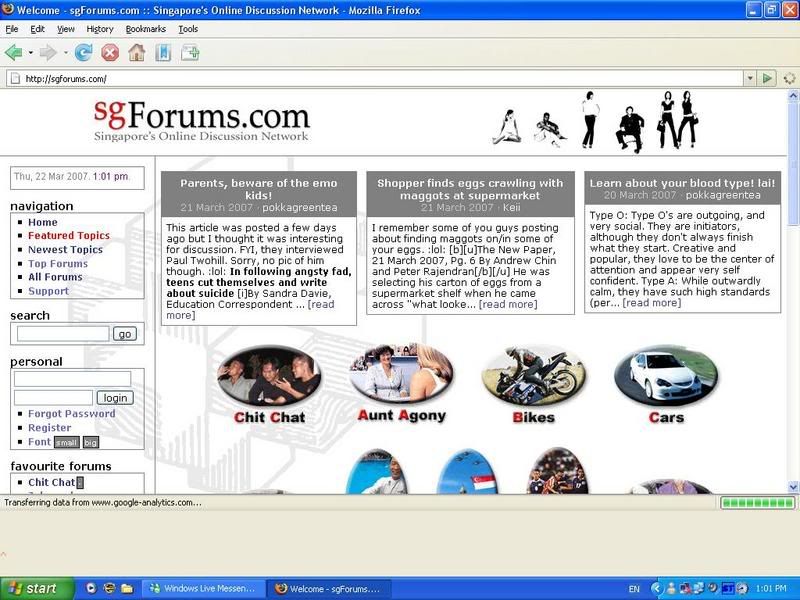
the big space at the bottom...